GTA 6 Auto Drive: what the setting does and where it is
GTA 6 can drive you to your set destination by itself. The game calls it Auto Drive and says it can only be enabled in the cinematic camera. The row on the Gameplay tab picks the situations where it is allowed.
First-hand · Xbox Series S · captured 19 November 2026, 02:39 UTC
Steps
- Pause the game and choose Settings, the last entry of the pause menu.
- Press RB or LB until the Gameplay tab is lit. It is tab 3 of 8.
- Move down to the section Accessibility and select Auto Drive.
- Press left or right to change the value. The change takes effect at once.
- Press B to go back. X restores the selected row to its default.
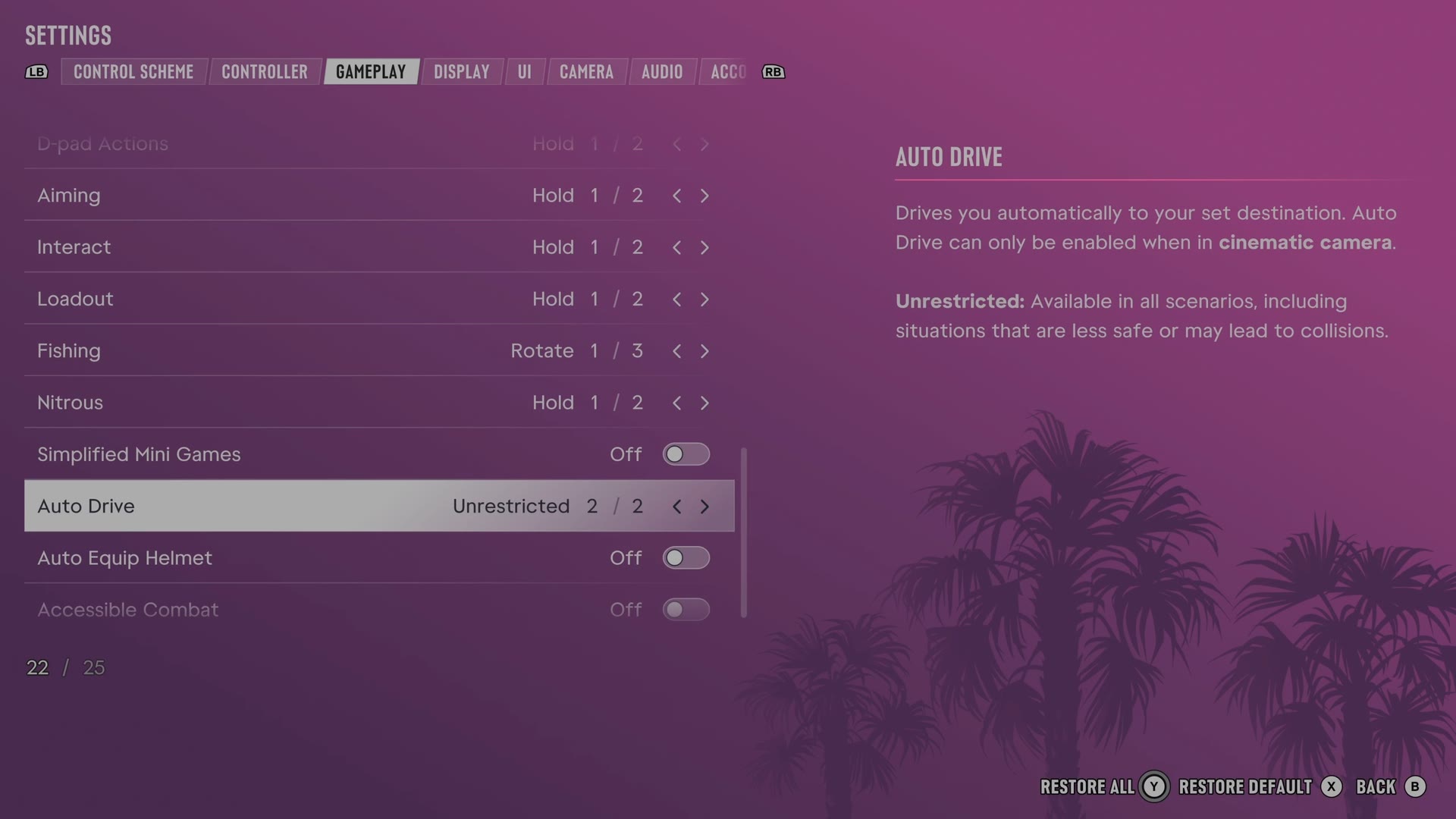
The row
Auto Drive
Sets which situations permit automatic driving towards your destination in cinematic camera.
2 choices Restricted · Unrestricted
What the game says about each choice
- Restricted
- Drives you automatically to your set destination. Auto Drive can only be enabled when in cinematic camera. Restricted: Only available in safe scenarios.
- Unrestricted
- Drives you automatically to your set destination. Auto Drive can only be enabled when in cinematic camera. Unrestricted: Available in all scenarios, including situations that are less safe or may lead to collisions.
What we have not tried. We have not used Auto Drive on the road yet, so this page does not say which button starts it.
Every row of this tab: GTA 6 gameplay settings: targeting, aim assist and accessibility. The whole screen: GTA 6 settings on Xbox Series S.