GTA 6 gameplay settings: targeting, aim assist and accessibility
The Gameplay tab has 25 rows in 3 sections: Combat, Movement and Accessibility. The Accessibility section is the largest on the tab. It eases holds and repeated presses, and two of its switches reduce the damage you and your vehicle take.
First-hand · Xbox Series S · captured 19 November 2026, 02:39 UTC
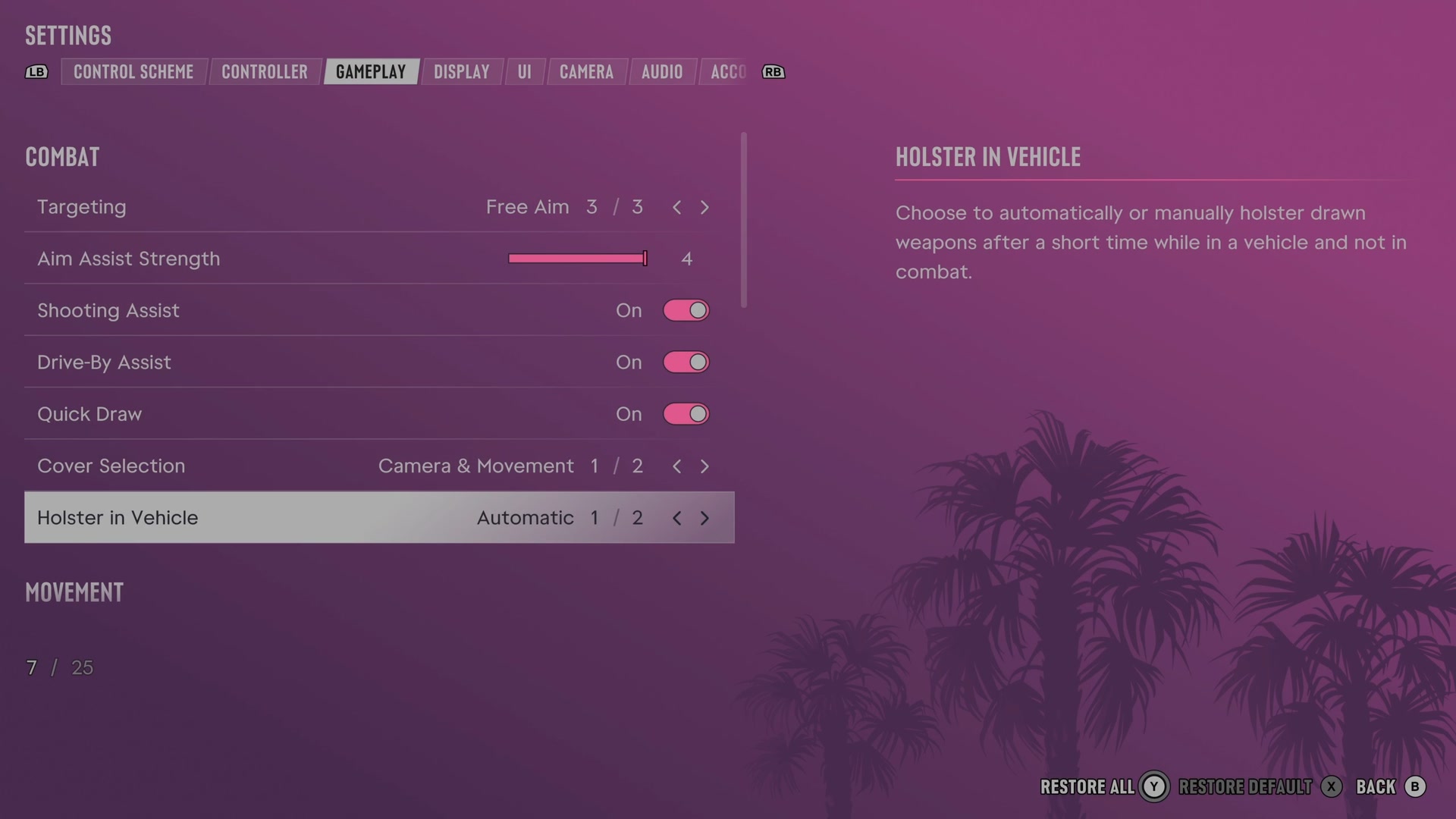
Open it from the pause menu: choose Settings, then press RB or LB until Gameplay is lit. It is tab 3 of 8. A change takes effect as you make it, X restores the selected row to its default and B goes back.
Combat · Movement · Accessibility
Combat
Targeting
Chooses whether aiming locks onto a target, moves towards one or stays manual.
3 choices Lock-On · Partial · Free Aim
What the game says about each choice
- Lock-On
- Choose your preference for aiming lock-on. Lock-On: Aiming will always attempt to lock on to the nearest target.
- Partial
- Choose your preference for aiming lock-on. Partial: Aiming will move towards a nearby target but will not lock on.
- Free Aim
- Choose your preference for aiming lock-on. Free Aim: Aiming will never lock on to a target.
Aim Assist Strength
Sets how strongly aiming slows the reticle near a target.
Slider set to 4 (bar full) on our console
Shooting Assist
Turns assistance with following nearby targets on or off.
Switch On on our console
Drive-By Assist
Turns automatic aiming at nearby targets while firing from a moving vehicle on or off.
Switch On on our console
Quick Draw
Turns quick weapon drawing with the aim and shoot buttons on or off.
Switch On on our console
Cover Selection
Chooses whether camera direction helps determine where you take cover.
2 choices Camera & Movement · Movement Only
Holster in Vehicle
Chooses whether drawn weapons are put away automatically in vehicles outside combat.
2 choices Automatic · Manual
Movement
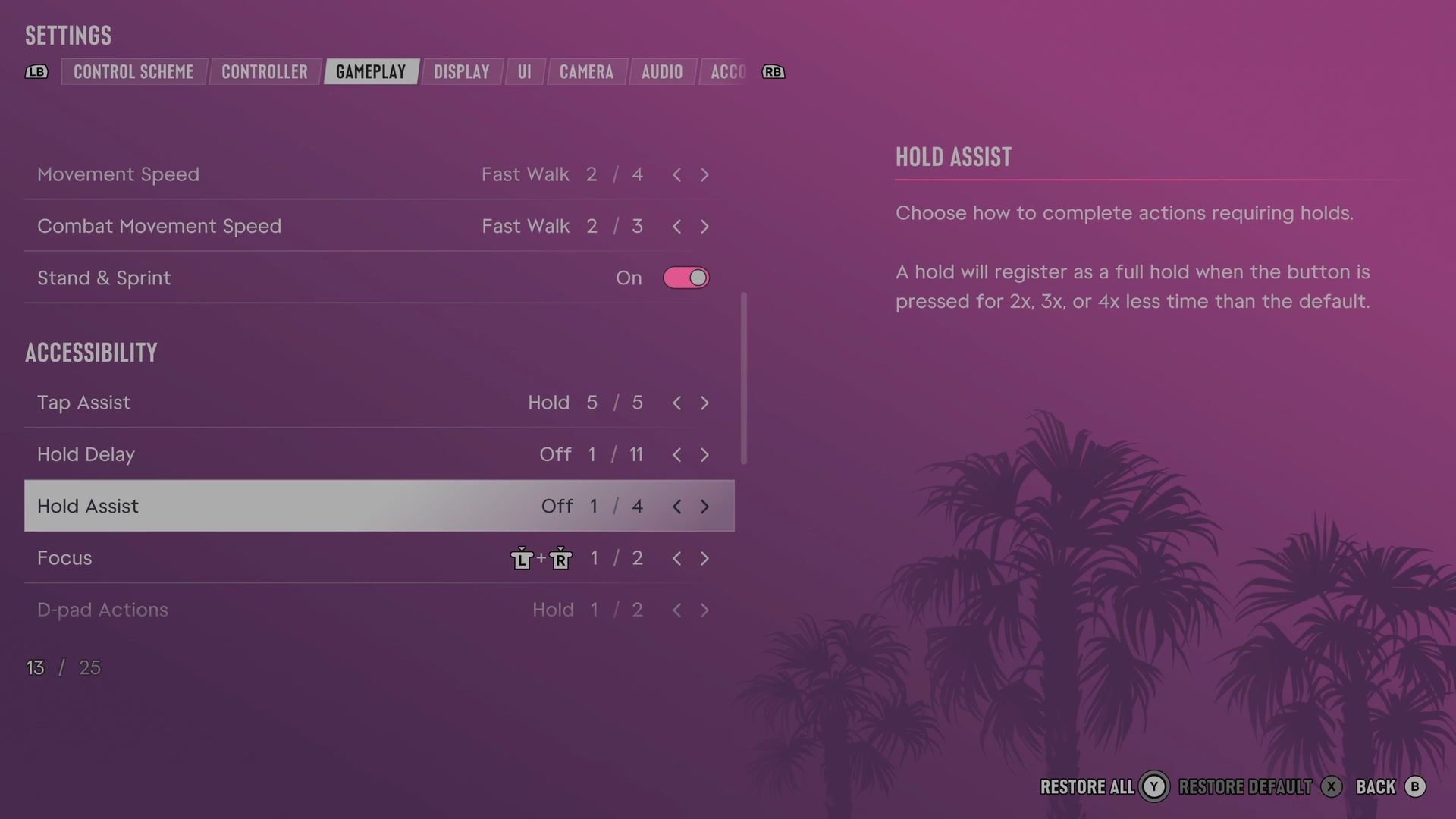
Movement Speed
Sets your highest movement speed when pushing the movement stick fully.
4 choices Walk · Fast Walk · Jog · Run
What the game says about each choice
- Walk
- The max movement speed when using L Walk: Your max speed will be a walk when L is fully pushed.
- Fast Walk
- The max movement speed when using L Fast Walk: Your max speed will be a fast walk when L is fully pushed. Ease off the stick to move at slower speeds.
- Jog
- The max movement speed when using L Jog: Your max speed will be a brisk jog when L is fully pushed. Ease off the stick to move at slower speeds.
- Run
- The max movement speed when using L Run: Your max speed will be a run when L is fully pushed. Ease off the stick to move at slower speeds.
Combat Movement Speed
Sets your movement speed in combat unless your normal movement setting is faster.
3 choices Walk · Fast Walk · Run
What the game says about each choice
- Walk
- The movement speed when using L during combat. Your default movement speed will override this setting if it's faster. Walk: Your max speed will be a walk when L is fully pushed.
- Fast Walk
- The movement speed when using L during combat. Your default movement speed will override this setting if it's faster. Fast Walk: Your max speed will be a fast walk when L is fully pushed. Ease off the stick to move at slower speeds.
- Run
- The movement speed when using L during combat. Your default movement speed will override this setting if it's faster. Run: Your max speed will be a run when L is fully pushed. Ease off the stick to move at slower speeds.
Stand & Sprint
Chooses whether sprinting automatically makes you stand from a crouch.
Switch On on our console
Accessibility
Tap Assist
Changes repeated button presses into fewer presses or a hold.
5 choices Off · 2x · 3x · 4x · Hold
Hold Delay
Sets the delay before holding a button registers.
11 choices Off · +25% · +50% · +75% · +100% · +125% · +150% · +175% · +200% · +225% · +250%
Hold Assist
Shortens the time needed to complete actions that require holding a button.
4 choices Off · 2x · 3x · 4x
Focus
Assigns the buttons used for focus and combat focus.
2 choices L3 + R3 · View
D-pad Actions
Chooses between holding and holding then releasing for D-pad actions.
2 choices Hold · Hold & Release
Aiming
Chooses whether aiming requires holding or pressing the aim button.
2 choices Hold · Press
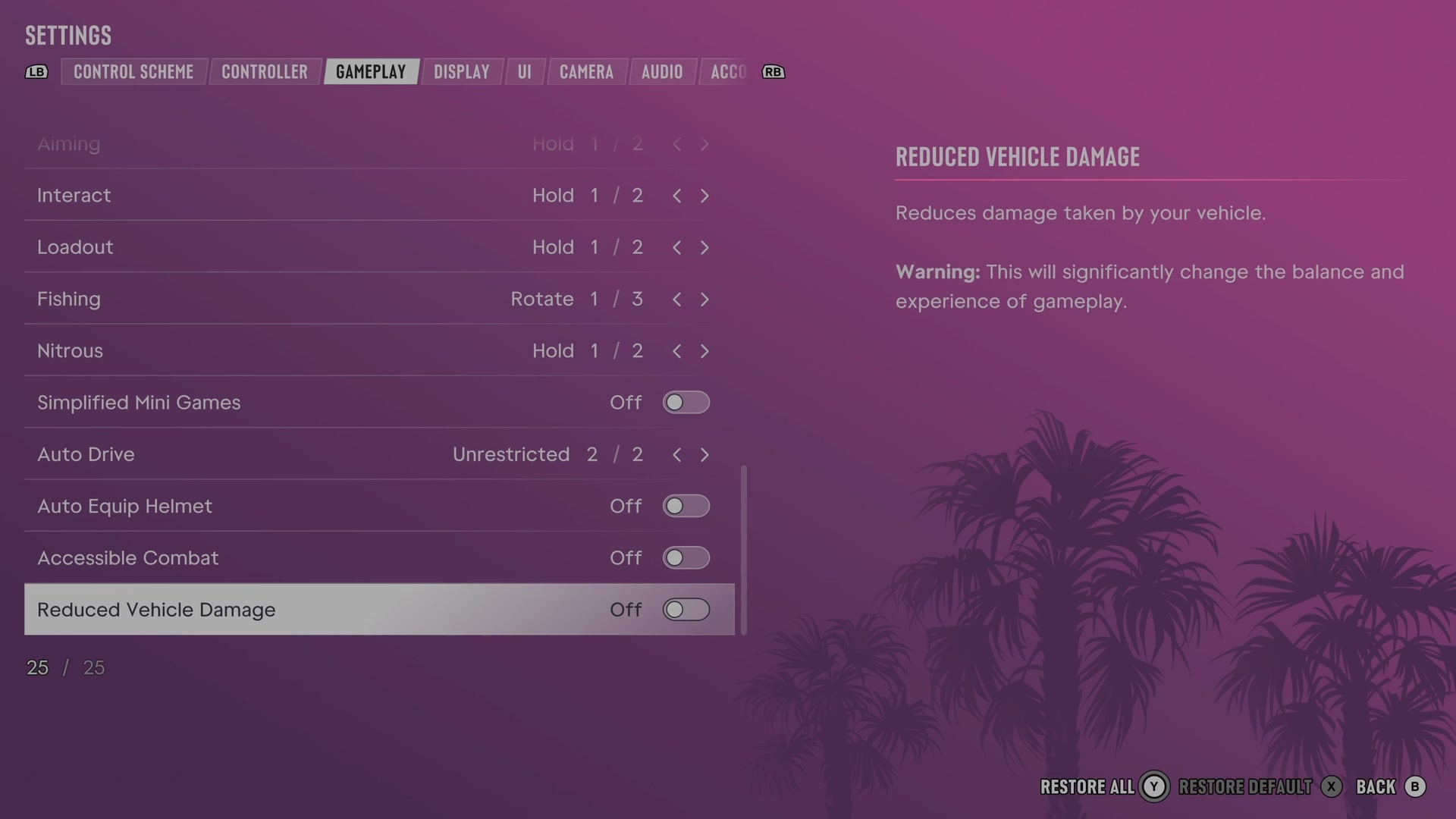
Interact
Chooses whether interactions require holding or pressing the aim button.
2 choices Hold · Press
Loadout
Chooses between holding and holding then releasing to open your loadout.
2 choices Hold · Hold & Release
What the game says about each choice
- Hold
- Choose how to access your loadout. Hold: Hold LB to open your loadout.
- Hold & Release
- Choose how to access your loadout. Hold & Release: Hold and release LB to open your loadout and press LB again to close it.
Fishing
Chooses the input used to reel in a fish.
3 choices Rotate · Hold · Pull
What the game says about each choice
- Rotate
- Choose the reeling controls when fishing. Rotate: Rotate R to reel in a fish.
- Hold
- Choose the reeling controls when fishing. Hold: Hold or repeatedly tap X to reel in a fish.
- Pull
- Choose the reeling controls when fishing. Pull: Pull R to reel in a fish.
Nitrous
Chooses whether vehicle nitrous requires holding or pressing its button.
2 choices Hold · Press
Simplified Mini Games
Reduces the input needed for activities such as hotwiring, exercise and basketball.
Switch Off on our console
Auto Drive
Sets which situations permit automatic driving towards your destination in cinematic camera.
2 choices Restricted · Unrestricted
What the game says about each choice
- Restricted
- Drives you automatically to your set destination. Auto Drive can only be enabled when in cinematic camera. Restricted: Only available in safe scenarios.
- Unrestricted
- Drives you automatically to your set destination. Auto Drive can only be enabled when in cinematic camera. Unrestricted: Available in all scenarios, including situations that are less safe or may lead to collisions.
Auto Equip Helmet
Chooses whether helmets are equipped and removed automatically when using certain vehicles.
Switch Off on our console
Accessible Combat
Lowers enemy health and the damage your character takes.
Switch Off on our console
Reduced Vehicle Damage
Lowers the damage your vehicle takes.
Switch Off on our console
Next to this tab: Controller and Display. All tabs: GTA 6 settings on Xbox Series S.