GTA 6 settings on Xbox Series S: all 8 tabs and 177 rows
We walked through every row of the settings screen on our own console and took a picture of each one. This page is the map: what each tab holds and where to find a row.
First-hand · Xbox Series S · captured 19 November 2026, 02:38 UTC
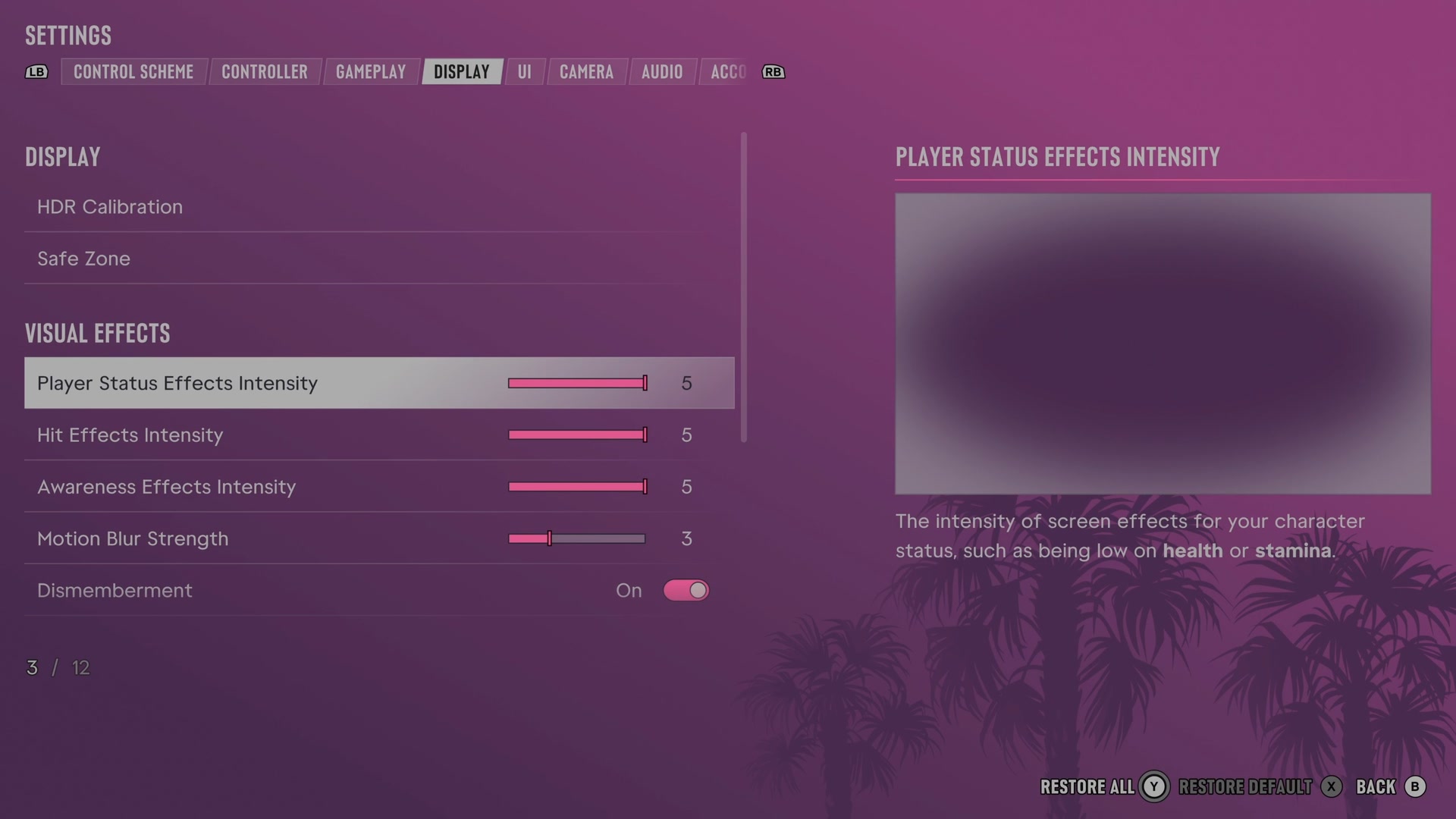
How the settings screen works
- Pause the game and choose Settings, the last entry of the pause menu.
- LB and RB switch tabs. The tabs are, left to right: Control Scheme · Controller · Gameplay · Display · UI · Camera · Audio · Account.
- The selected row is explained in a panel on the right, often with a small picture or a live preview.
- A change takes effect as you make it. There is no button to apply or confirm.
- X is Restore default for the selected row and Y is Restore all. B goes back.
- A counter at the bottom left shows where you are in the tab, such as 15 / 24.
The tabs
| Tab | Rows | Sections |
|---|---|---|
| Control Scheme | 9 | Control Scheme, Preview |
| Controller | 15 | Aim & Look Sensitivity, Inverted Controls, Controller Features |
| Gameplay | 25 | Combat, Movement, Accessibility |
| Display | 12 | Display, Visual Effects, High Contrast Shaders |
| UI | 70 | Scaling & Readability, Subtitles & Captions, Navigation, Reticle, Combat, HUD Notifications, Progress Notifications, Player & Vehicle Status, Prompts, Activities, Units of Measurement |
| Camera | 24 | On Foot, Land & Water Vehicles, Comfort, Aircraft, Underwater, Cinematic |
| Audio | 13 | Setup, Volume, Narration |
| Account | 9 | Rockstar Games, Legal |
No performance mode on Xbox Series S
We read all 177 rows. None of them sets a frame rate, a resolution, a graphics quality or a performance mode. The Display tab holds HDR calibration, the safe zone, effect strengths, motion blur, gore and high contrast shaders, and nothing else. More in Does GTA 6 have a performance mode on Xbox Series S?
Rows that come and go
Some rows show only when another row has a certain value, so the counter at the bottom left can change while you are on a tab.
- Gameplay. Lock-On Time and Lock-On Target Switch show when Targeting is Lock-On and are gone when it is Partial or Free Aim, so the tab has 27 rows with Lock-On and 25 without.
- UI. Closed Captions, Size, Speaker Names and Background show when Subtitles is Mission Only or On and are gone when it is Off, so the tab falls from 70 rows to 66. Minimap Size and GPS Route show when Minimap is On or Dynamic and are gone when it is Off; the tab then also falls to 66 rows, and our pictures do not show which two other rows leave with them. Equipped Reticle Visibility and Aiming Reticle Visibility show when Reticle Shape is Complex, Simple or Dot and are gone when it is None; the tab then has 68 rows and Reticle Size stays in the list with a lock on it.
Read the values with care. Each tab page marks the value our console had when we took the picture.
It is not always the game's default: some rows had been changed before the capture.
The same facts are open as data at /data/settings.json.