GTA 6 controller settings: sensitivity, deadzones and inverted controls
The Controller tab has 15 rows in 3 sections: Aim & Look Sensitivity, Inverted Controls and Controller Features. Looking and aiming have separate sensitivity sliders, and each stick has its own deadzone slider.
First-hand · Xbox Series S · captured 19 November 2026, 02:39 UTC
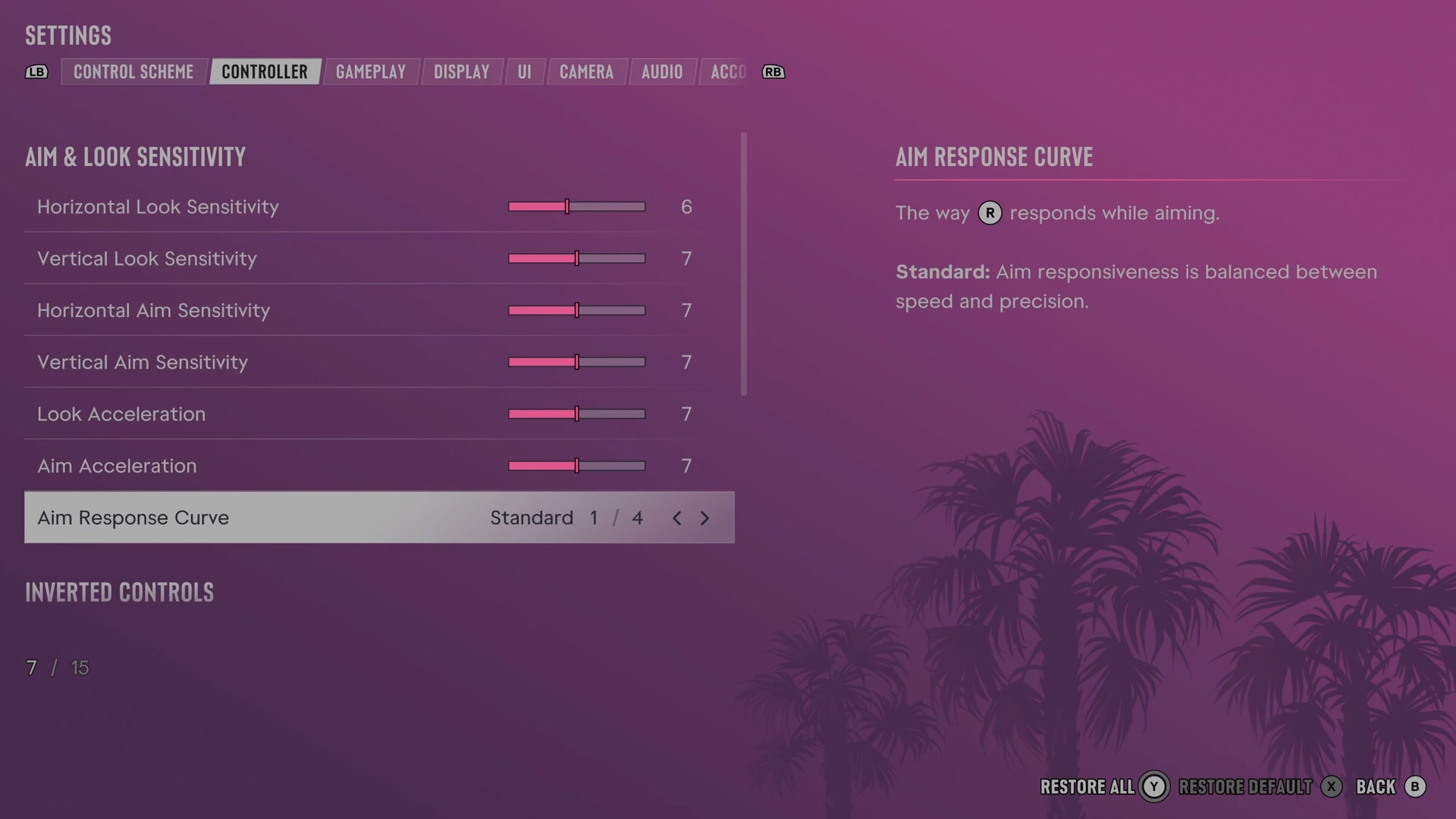
Open it from the pause menu: choose Settings, then press RB or LB until Controller is lit. It is tab 2 of 8. A change takes effect as you make it, X restores the selected row to its default and B goes back.
Aim & Look Sensitivity · Inverted Controls · Controller Features
Aim & Look Sensitivity
Horizontal Look Sensitivity
Sets how fast the camera turns sideways when you look around.
Slider set to 6 on our console
Vertical Look Sensitivity
Sets how fast the camera turns up and down when you look around.
Slider set to 7 on our console
Horizontal Aim Sensitivity
Sets how fast the camera turns sideways while you aim.
Slider set to 7 on our console
Vertical Aim Sensitivity
Sets how fast the camera turns up and down while you aim.
Slider set to 7 on our console
Look Acceleration
Sets how quickly camera movement builds to its highest speed when you look around.
Slider set to 7 on our console
Aim Acceleration
Sets how quickly camera movement builds to its highest speed while you aim.
Slider set to 7 on our console
Aim Response Curve
Changes how the right stick responds while you aim.
4 choices Standard · Linear · Precision · Aggressive
What the game says about each choice
- Standard
- The way R responds while aiming. Standard: Aim responsiveness is balanced between speed and precision.
- Linear
- The way R responds while aiming. Linear: Aim responsiveness matches raw input with how much R is pushed.
- Precision
- The way R responds while aiming. Precision: Aim responsiveness is slower when partially pushing R and will increase quickly when fully pushed.
- Aggressive
- The way R responds while aiming. Aggressive: Aim responsiveness is always fast when using R and has less precision when partially pushed.
Inverted Controls
Look
Changes which right stick directions move the camera up, down, left and right.
4 choices Default · Vertical · Horizontal · Both
What the game says about each choice
- Default
- Choose the direction of the camera when using R to look around. Default: Push up to look up, and down to look down. Push left to look left, and right to look right.
- Vertical
- Choose the direction of the camera when using R to look around. Vertical: Push up to look down, and down to look up.
- Horizontal
- Choose the direction of the camera when using R to look around. Horizontal: Push left to look right, and right to look left.
- Both
- Choose the direction of the camera when using R to look around. Both: Push up to look down, and down to look up. Push left to look right, and right to look left.
Movement
Changes which left stick directions move your character or vehicle.
4 choices Default · Vertical · Horizontal · Both
What the game says about each choice
- Default
- Choose the movement direction when using L on foot and in a vehicle. Default: Push up to move forwards, and down to move backwards. Push left to move left, and right to move right.
- Vertical
- Choose the movement direction when using L on foot and in a vehicle. Vertical: Push up to move backwards, and down to move forwards.
- Horizontal
- Choose the movement direction when using L on foot and in a vehicle. Horizontal: Push left to move right, and right to move left.
- Both
- Choose the movement direction when using L on foot and in a vehicle. Both: Push up to move backwards, and down to move forwards. Push left to move right, and right to move left.
3D Map Rotation
Changes which right stick directions turn the 3D map.
4 choices Default · Vertical · Horizontal · Both
What the game says about each choice
- Default
- Choose the direction of the camera when using R to rotate the 3D map. Default: Push up to look up, and down to look down. Push left to rotate left, and right to rotate right.
- Vertical
- Choose the direction of the camera when using R to rotate the 3D map. Vertical: Push up to look down, and push down to look up.
- Horizontal
- Choose the direction of the camera when using R to rotate the 3D map. Horizontal: Push left to rotate right, and right to rotate left.
- Both
- Choose the direction of the camera when using R to rotate the 3D map. Both: Push up to look down, and push down to look up. Push left to rotate right, and right to rotate left.
Aircraft Movement
Reverses vertical aircraft controls on the left stick.
Switch On on our console
Controller Features
Vibration & Haptics Strength
Sets the strength of controller vibration.
Slider set to 10 (bar full) on our console
Deadzone (Left Stick)
Sets how far the left stick must move before the game responds.
Slider set to 4 on our console
Deadzone (Right Stick)
Sets how far the right stick must move before the game responds.
Slider set to 4 on our console
View Button
Assigns the View button to the map or camera controls.
2 choices Map · Camera
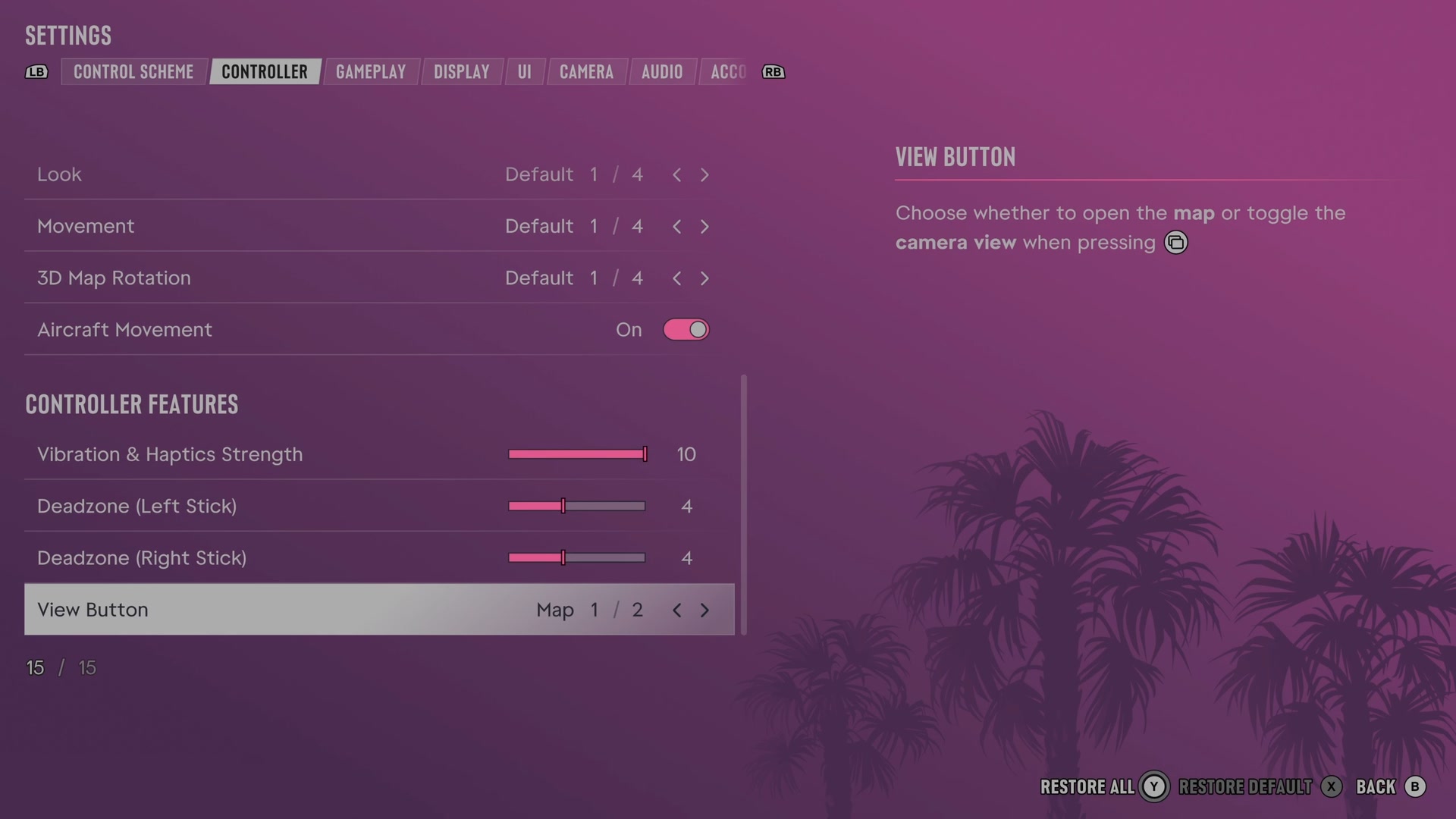
Next to this tab: Control Scheme and Gameplay. All tabs: GTA 6 settings on Xbox Series S.