GTA 6 UI and HUD settings: every row, from minimap to reticle
The UI tab has 70 rows in 11 sections: Scaling & Readability, Subtitles & Captions, Navigation, Reticle, Combat, HUD Notifications, Progress Notifications, Player & Vehicle Status, Prompts, Activities and Units of Measurement. This is the longest tab by far. Nearly every part of the HUD has its own switch, so the screen can be stripped down piece by piece.
First-hand · Xbox Series S · captured 19 November 2026, 02:40 UTC
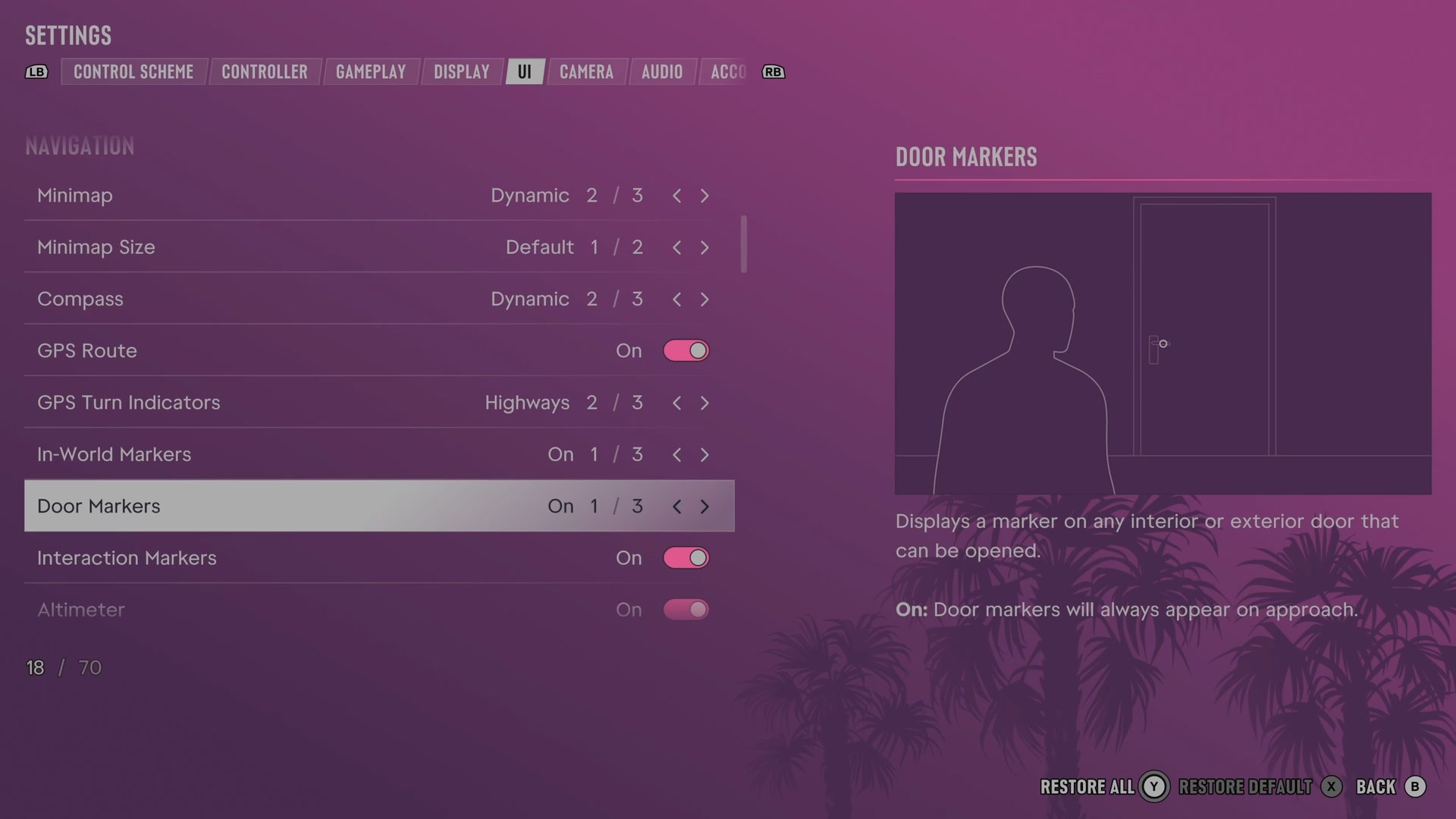
Open it from the pause menu: choose Settings, then press RB or LB until UI is lit. It is tab 5 of 8. A change takes effect as you make it, X restores the selected row to its default and B goes back.
Scaling & Readability · Subtitles & Captions · Navigation · Reticle · Combat · HUD Notifications · Progress Notifications · Player & Vehicle Status · Prompts · Activities · Units of Measurement
Scaling & Readability
Language
Chooses the language used by menus and other interface text.
12 choices English on our console (1 of 12)
UI Text Size
Sets the size of interface text, icons and button prompts.
4 choices Small · Medium · Large · Extra Large
Color Adjustments
Changes colours used by menus and the HUD.
4 choices Off · Protan · Deutan · Tritan
Map Blip Size
Sets the size of symbols on the map.
2 choices Default · Large
Minimap Blip Size
Sets the size of symbols on the minimap.
2 choices Default · Large
In-World Marker Size
Sets the size of world markers and compass symbols.
2 choices Default · Large
Subtitles & Captions
Subtitles
Chooses when spoken dialogue appears as subtitles.
3 choices Off · Mission Only · On
What the game says about each choice
- Off
- Choose when to display subtitles. Off: Subtitles will never display.
- Mission Only
- Choose when to display subtitles. Mission Only: Subtitles will only display during moments critical to gameplay and story.
- On
- Choose when to display subtitles. On: Subtitles will always display.
Closed Captions
Chooses which sounds appear as written captions.
4 choices Off · Non-Speech · Environment · On
What the game says about each choice
- Off
- Choose when to display closed captions. Off: Closed captions will never display.
- Non-Speech
- Choose when to display closed captions. Non-Speech: Displays text detailing non-speech sounds only.
- Environment
- Choose when to display closed captions. Environment: Displays text detailing environmental sounds only.
- On
- Choose when to display closed captions. On: Displays text detailing non-speech and environmental sounds.
Size
Sets how large subtitles and captions appear.
3 choices Small · Medium · Large
Speaker Names
Chooses whether subtitles and captions identify the speaker.
Switch Off on our console
Background
Chooses the background behind subtitles and captions.
3 choices Off · Transparent · Solid
What the game says about each choice
- Off
- Choose the background for subtitles and closed captions. Off: No background.
- Transparent
- Choose the background for subtitles and closed captions. Transparent: Displays a partially transparent background.
- Solid
- Choose the background for subtitles and closed captions. Solid: Displays an opaque background.
Navigation
Reticle
Persistent Center Dot
Adds a fixed dot at the centre of the screen.
Switch Off on our console
Reticle Hit Markers
Chooses whether the reticle shows confirmation when you damage a target.
Switch On on our console
Reticle Size
Sets how large the weapon aiming mark appears.
2 choices Default · Large
Reticle Shape
Chooses the shape of the weapon aiming mark or hides it.
4 choices Complex · Simple · Dot · None
What the game says about each choice
- Complex
- How the weapon reticle is displayed on screen. Complex: The reticle is unique between different weapon types.
- Simple
- How the weapon reticle is displayed on screen. Simple: A dot with a ring that varies with accuracy.
- Dot
- How the weapon reticle is displayed on screen. Dot: A dot only.
- None
- How the weapon reticle is displayed on screen. None: No reticle.
Equipped Reticle Visibility
Sets how visible the reticle is while holding a weapon without aiming.
Slider set to 10 (bar full) on our console
Aiming Reticle Visibility
Sets how visible the reticle is while aiming.
Slider set to 10 (bar full) on our console
Reticle Messages
Chooses whether activity score updates appear beside the reticle.
Switch On on our console
Projectile Arc
Chooses when a throwing arc appears and whether you can toggle it while aiming.
4 choices Off (Toggle On) · On (Toggle Off) · Always On · Always Off
What the game says about each choice
- Off (Toggle On)
- Displays an arc when you aim a throwable item. Off (Toggle On): Arc doesn't display by default. It can be toggled on with R3 while aiming.
- On (Toggle Off)
- Displays an arc when you aim a throwable item. On (Toggle Off): Arc displays by default. It can be toggled off with R3 while aiming.
- Always On
- Displays an arc when you aim a throwable item. Always On: Arc will always display.
- Always Off
- Displays an arc when you aim a throwable item. Always Off: Arc will never display.
Combat
Weapon Preview
Chooses whether the HUD shows the weapon you have equipped.
Switch On on our console
Ammo
Chooses whether the HUD shows ammunition for your equipped weapon.
Switch On on our console
Threat Indicators
Chooses whether nearby or attacking threats get screen indicators.
Switch On on our console
Damage Region Highlights
Chooses whether combat focus highlights vulnerable parts of targets.
Switch On on our console
HUD Notifications
Ticker Feed
Chooses whether the HUD confirms actions such as purchases and item collection.
Switch On on our console
Criminal Profile
Chooses whether the HUD reports changes to Jason and Lucia's criminal profiles.
Switch On on our console
Relationship
Chooses whether the HUD reports changes to Jason and Lucia's relationship.
Switch On on our console
Help Text
Chooses whether the HUD shows instructions and relevant information.
Switch On on our console
Reminder Tips
Chooses whether help tips appear after failure, arrest or becoming wanted.
Switch On on our console
Objective
Chooses whether your current objective appears on the HUD.
Switch On on our console
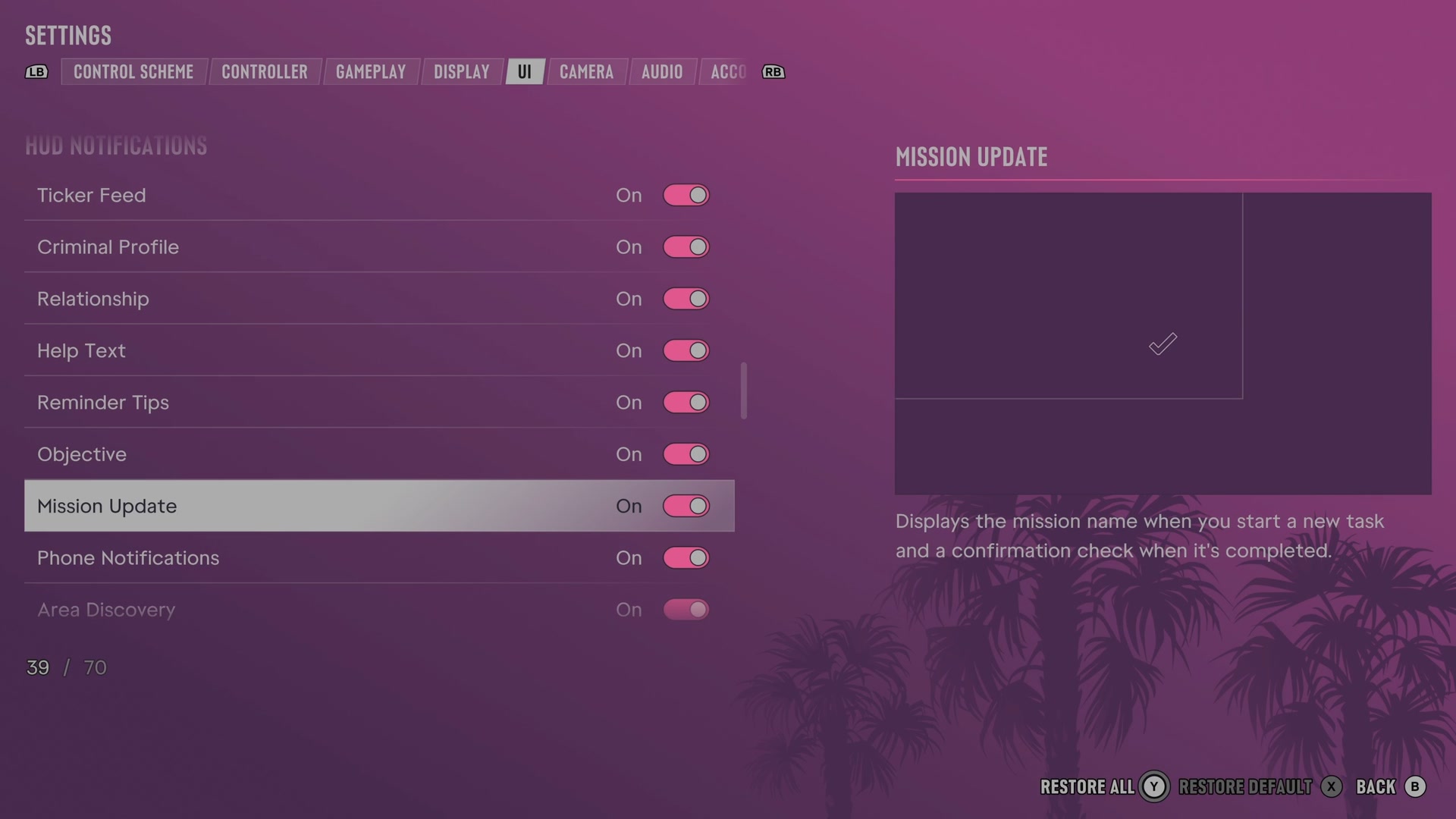
Mission Update
Chooses whether starting and finishing tasks produces mission messages.
Switch On on our console
Phone Notifications
Chooses whether calls, messages and app alerts appear on the HUD.
Switch On on our console
Area Discovery
Chooses whether discovering an area shows its name in a special style.
Switch On on our console
Area Names
Chooses whether crossing an area boundary shows the area's name.
Switch On on our console
Street Names
Chooses whether entering another street shows its name.
Switch Off on our console
Progress Notifications
Progress Notifications
Chooses whether the HUD reports new progress, locations and tasks.
Switch On on our console
Weapons
Chooses whether finding a new weapon produces a notification.
Switch Off on our console
Vehicles
Chooses whether finding a new vehicle produces a notification.
Switch Off on our console
Animals
Chooses whether finding a new animal produces a notification.
Switch Off on our console
Collections
Chooses whether finding a new collectible produces a notification.
Switch On on our console
Stunts
Chooses whether finding a new stunt produces a notification.
Switch On on our console
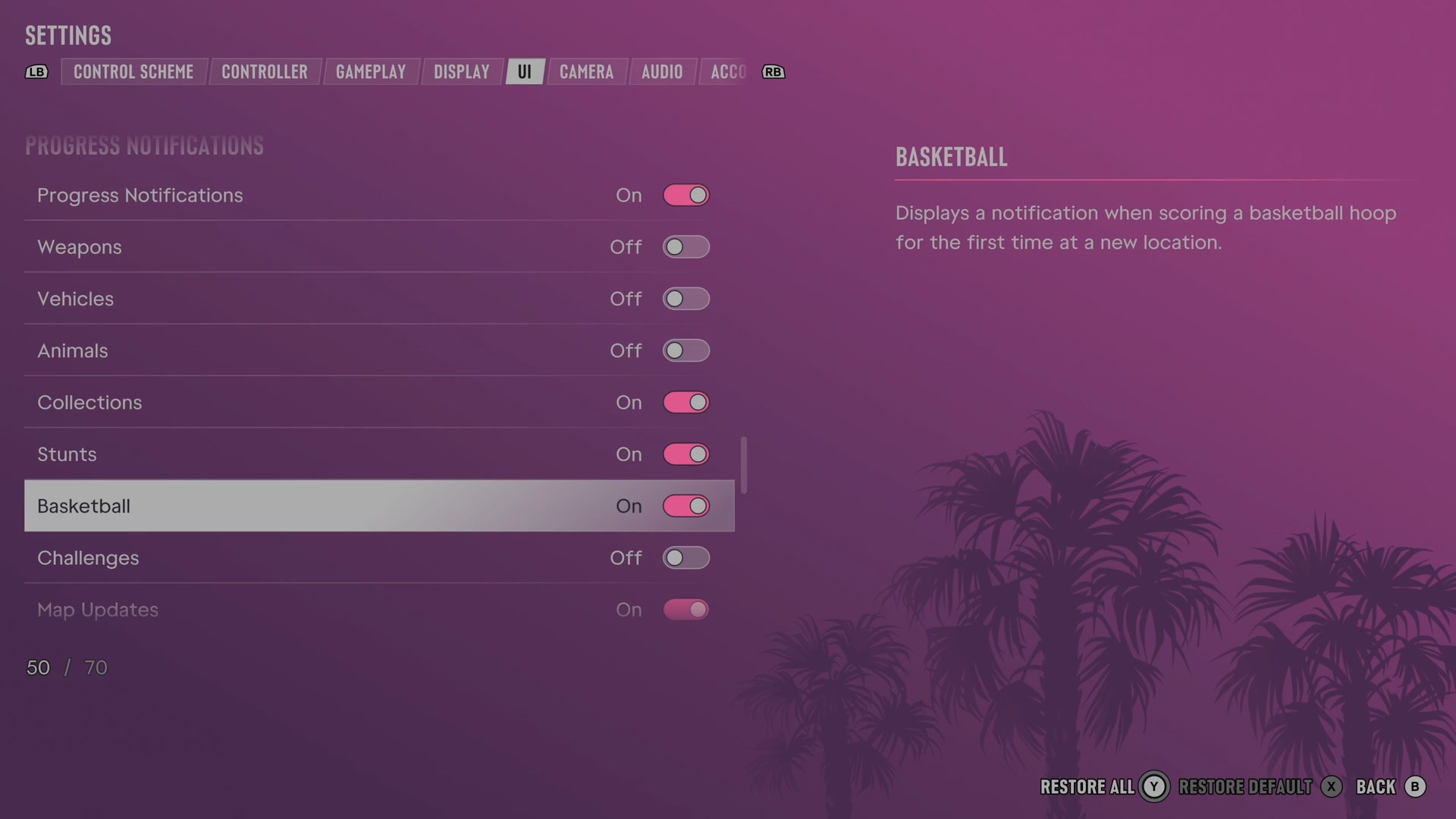
Basketball
Chooses whether your first basket at a new location produces a notification.
Switch On on our console
Challenges
Chooses whether finishing a challenge produces a notification.
Switch Off on our console
Map Updates
Chooses whether adding a location or task produces a notification.
Switch On on our console
Player & Vehicle Status
Player Vitals
Chooses whether the HUD shows your health, stamina and focus meters.
Switch On on our console
Wanted Stars
Chooses whether the HUD shows stars for your wanted level.
Switch On on our console
Heat Indicators
Chooses whether the HUD shows how police can identify you after a crime.
Switch On on our console
Money
Chooses whether the HUD shows your money.
Switch On on our console
Vehicle Name & Status
Chooses whether entering a vehicle shows its name, fuel and condition.
Switch On on our console
Prompts
In-World Prompts
Chooses whether objects you can use have interaction prompts in the world.
Switch On on our console
Prompt Visibility
Sets how visible prompts remain when your character blocks them.
Slider set to 7 on our console
Vehicle Prompt
Chooses when vehicles you can enter show a prompt.
3 choices Off · Dynamic · On
What the game says about each choice
- Off
- Displays a prompt on vehicles that can be entered. Off: Prompt will never appear.
- Dynamic
- Displays a prompt on vehicles that can be entered. Dynamic: Prompt will appear on a delay.
- On
- Displays a prompt on vehicles that can be entered. On: Prompt will always appear on approach.
Mini Game UI
Chooses whether activities such as lockpicking show instructions for their controls.
Switch On on our console
Bottom Right Prompts
Chooses whether extra interaction and menu prompts appear on the HUD.
Switch On on our console
Prompt Pinning
Keeps certain prompts at the screen edge when their objects leave the camera view.
Switch On on our console
Activities
Mini Scoreboard
Chooses whether activities show a small scoreboard.
Switch On on our console
Central Messages
Chooses whether activities show central messages about placement, scores and medals.
Switch On on our console
Activity Timers & Stats
Chooses whether activities show timers, medals and progress information.
Switch On on our console
Units of Measurement
Distance
Chooses the units used for distance and height.
2 choices Metric · Imperial
What the game says about each choice
- Metric
- Distance and height is measured in centimeters, meters, and kilometers.
- Imperial
- Distance and height is measured in inches, feet, yards, and miles.
Weight
Chooses the units used for weight.
2 choices Kilograms · Pounds
Temperature
Chooses the units used for temperature.
2 choices Celsius · Fahrenheit
Clock Format
Chooses whether clocks use twelve or twenty-four hours.
2 choices 12 Hour · 24 Hour
Next to this tab: Display and Camera. All tabs: GTA 6 settings on Xbox Series S.