GTA 6 deadzone settings and stick drift
Each stick has its own deadzone slider in GTA 6. The game's text says a higher deadzone can help a controller with stick drift, because the game then ignores small movements of the stick.
First-hand · Xbox Series S · captured 19 November 2026, 02:39 UTC
Steps
- Pause the game and choose Settings, the last entry of the pause menu.
- Press RB or LB until the Controller tab is lit. It is tab 2 of 8.
- Move down to the section Controller Features and pick the row you want: Deadzone (Left Stick) and Deadzone (Right Stick).
- Press left or right to change the value. The change takes effect at once.
- Press B to go back. X restores the selected row to its default.
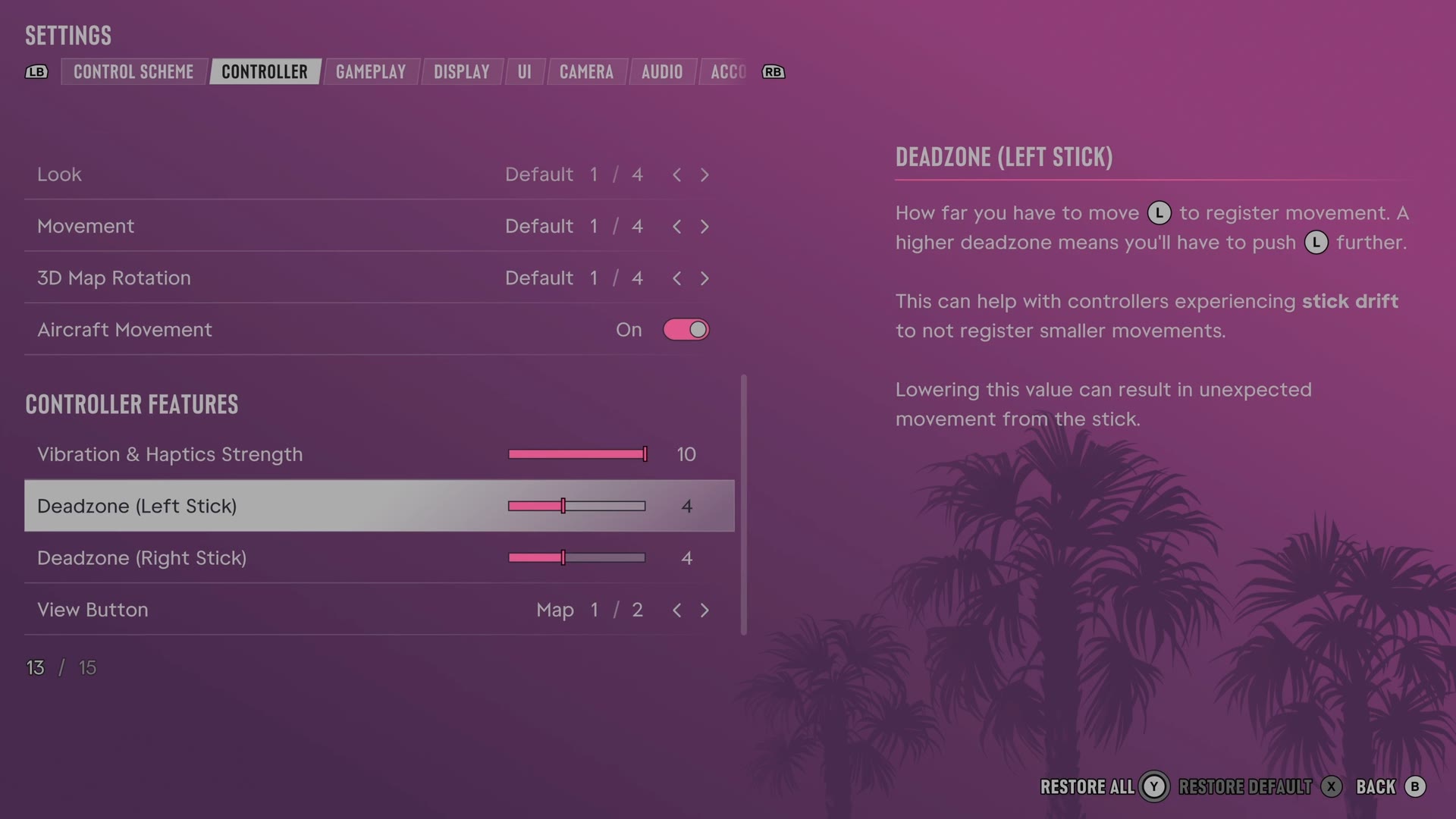
The rows
Deadzone (Left Stick)
Sets how far the left stick must move before the game responds.
Slider set to 4 on our console
Deadzone (Right Stick)
Sets how far the right stick must move before the game responds.
Slider set to 4 on our console
Every row of this tab: GTA 6 controller settings: sensitivity, deadzones and inverted controls. The whole screen: GTA 6 settings on Xbox Series S.