GTA 6 idle camera, cinematic kill shots and crash shots
Three rows at the bottom of the Camera tab set the cinematic moments: a switch for the idle camera, and two sliders for how often certain kills and vehicle crashes are shown in slow motion.
First-hand · Xbox Series S · captured 19 November 2026, 02:41 UTC
Steps
- Pause the game and choose Settings, the last entry of the pause menu.
- Press RB or LB until the Camera tab is lit. It is tab 6 of 8.
- Move down to the section Cinematic and pick the row you want: Idle Camera, Cinematic Kill Shot Frequency and Cinematic Vehicle Crash Frequency.
- Press left or right to change the value. The change takes effect at once.
- Press B to go back. X restores the selected row to its default.
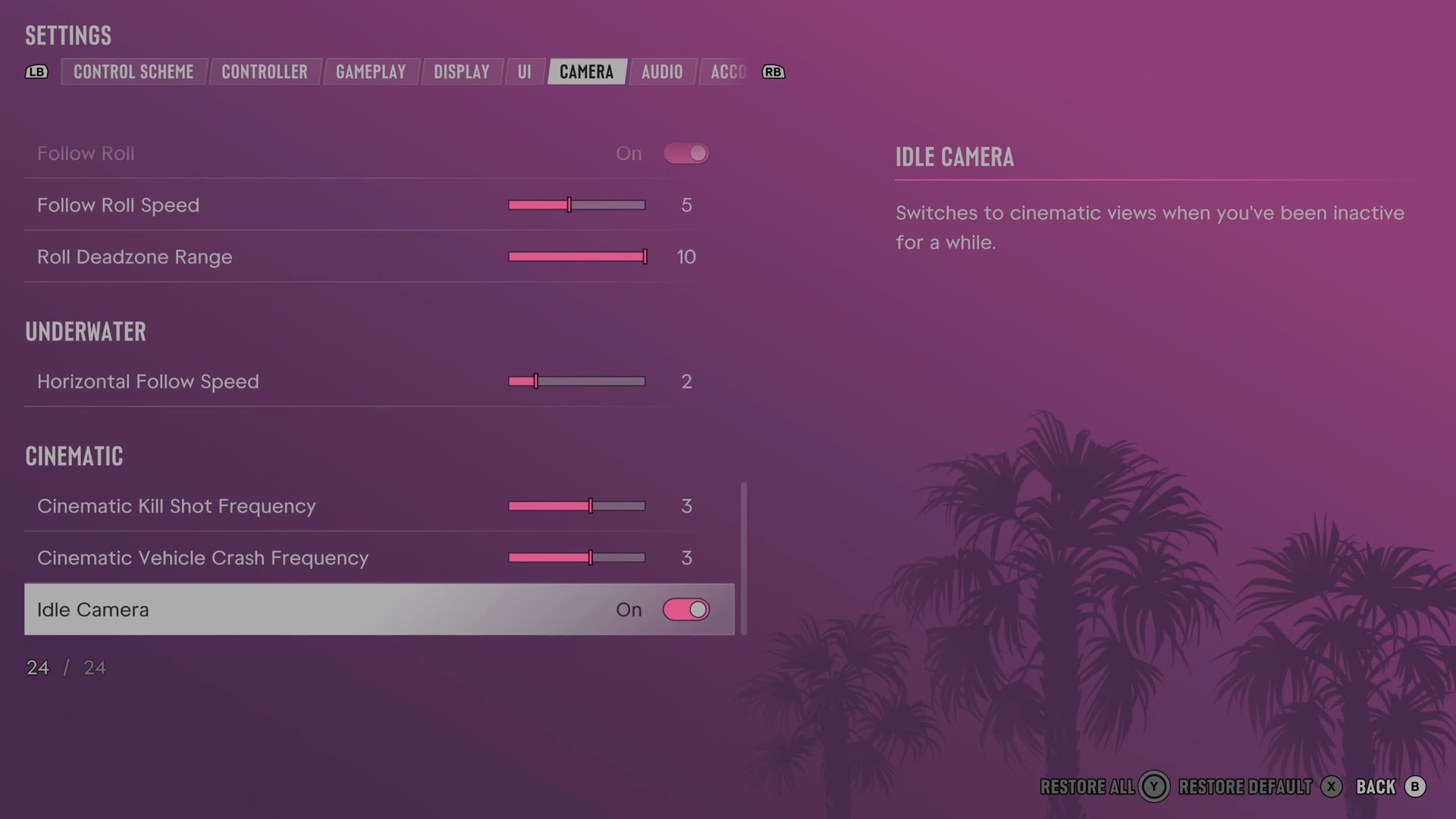
The rows
Idle Camera
Chooses whether leaving the controls untouched starts cinematic camera views.
Switch On on our console
Cinematic Kill Shot Frequency
Sets how often certain kills use a slow cinematic view.
Slider set to 3 on our console
Cinematic Vehicle Crash Frequency
Sets how often certain vehicle crashes use a slow cinematic view.
Slider set to 3 on our console
Every row of this tab: GTA 6 camera settings: follow speed, camera shake and cinematic shots. The whole screen: GTA 6 settings on Xbox Series S.