How to mute licensed music in GTA 6 before you stream or record
GTA 6 has one switch that mutes licensed music. It is called Mute Licensed Music and sits on the Audio tab, in the Setup section. The volume of the rest of the music is a separate slider further down.
First-hand · Xbox Series S · captured 19 November 2026, 02:42 UTC
Steps
- Pause the game and choose Settings, the last entry of the pause menu.
- Press RB or LB until the Audio tab is lit. It is tab 7 of 8.
- Move down to the sections Setup and Volume and pick the row you want: Mute Licensed Music, Music and Media.
- Press left or right to change the value. The change takes effect at once.
- Press B to go back. X restores the selected row to its default.
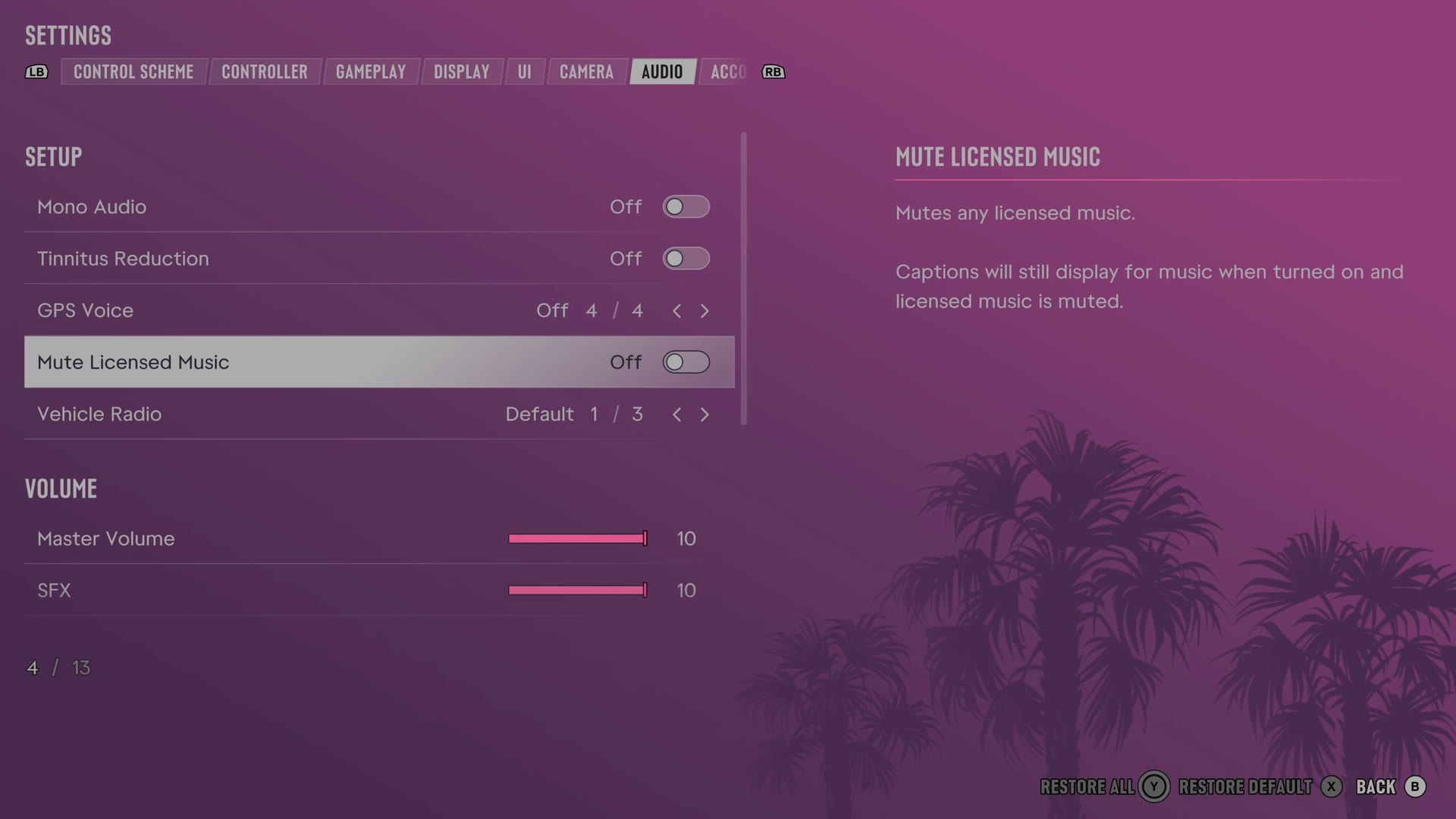
The rows
Mute Licensed Music
Chooses whether licensed music is silenced.
Switch Off on our console
Music
Sets how loud music plays.
Slider set to 10 (bar full) on our console
Media
Sets how loud television, radio and other media in the world play.
Slider set to 10 (bar full) on our console
What we have not tried. The game's text says the switch mutes any licensed music and that captions for
music still display. We have not streamed or uploaded a recording with it on, so we cannot say how a platform's copyright check treats what is left.
Every row of this tab: GTA 6 audio settings: volume, GPS voice and muting licensed music. The whole screen: GTA 6 settings on Xbox Series S.