GTA 6 reticle settings: shape, size, hit markers and the center dot
The reticle has a section of eight rows on the UI tab. Reticle Shape has four choices: Complex, Simple, Dot and None.
First-hand · Xbox Series S · captured 19 November 2026, 02:40 UTC
Steps
- Pause the game and choose Settings, the last entry of the pause menu.
- Press RB or LB until the UI tab is lit. It is tab 5 of 8.
- Move down to the section Reticle and pick the row you want: Persistent Center Dot, Reticle Hit Markers, Reticle Size, Reticle Shape, Equipped Reticle Visibility, Aiming Reticle Visibility, Reticle Messages and Projectile Arc.
- Press left or right to change the value. The change takes effect at once.
- Press B to go back. X restores the selected row to its default.
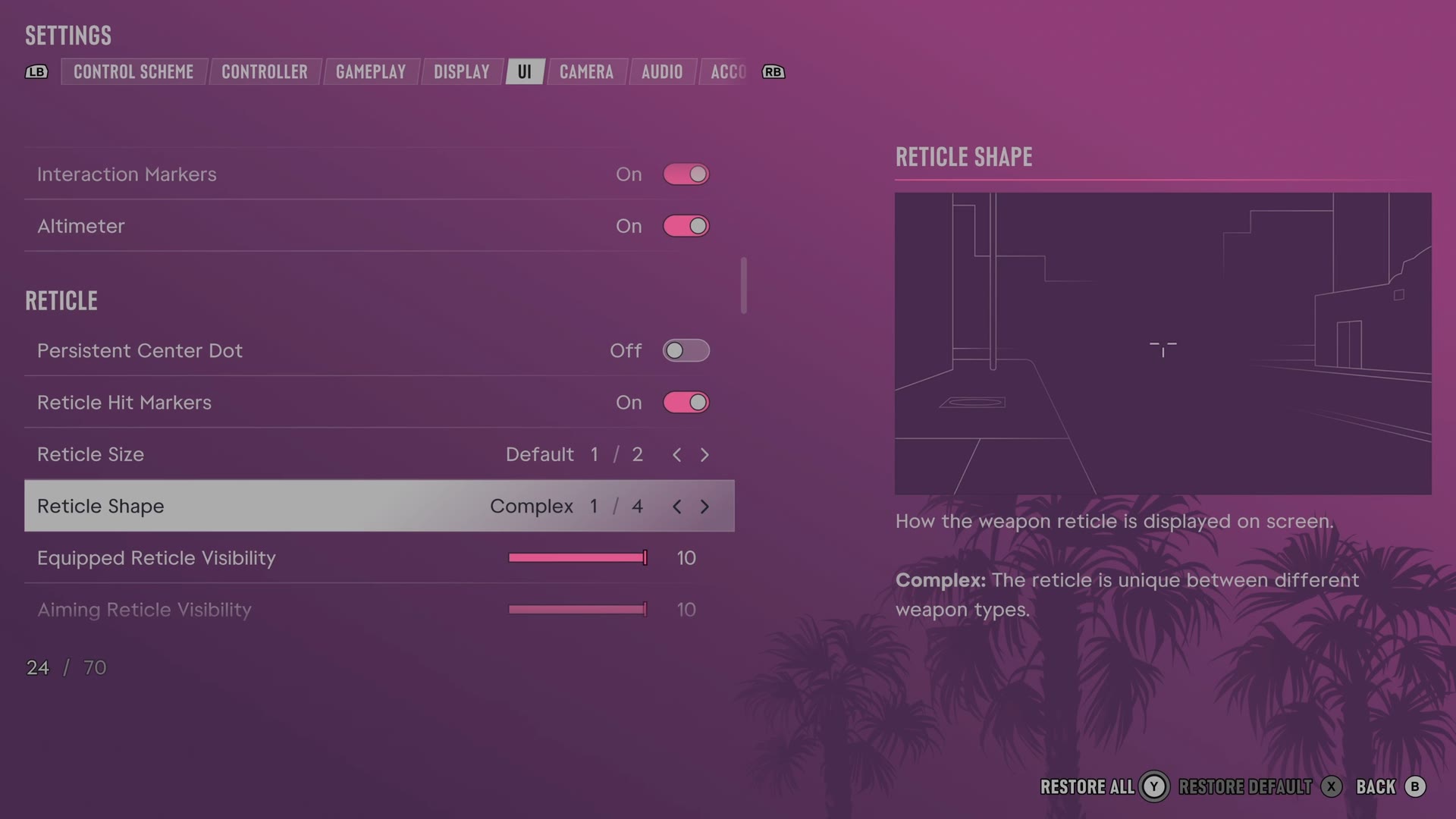
The rows
Persistent Center Dot
Adds a fixed dot at the centre of the screen.
Switch Off on our console
Reticle Hit Markers
Chooses whether the reticle shows confirmation when you damage a target.
Switch On on our console
Reticle Size
Sets how large the weapon aiming mark appears.
2 choices Default · Large
Reticle Shape
Chooses the shape of the weapon aiming mark or hides it.
4 choices Complex · Simple · Dot · None
What the game says about each choice
- Complex
- How the weapon reticle is displayed on screen. Complex: The reticle is unique between different weapon types.
- Simple
- How the weapon reticle is displayed on screen. Simple: A dot with a ring that varies with accuracy.
- Dot
- How the weapon reticle is displayed on screen. Dot: A dot only.
- None
- How the weapon reticle is displayed on screen. None: No reticle.
Equipped Reticle Visibility
Sets how visible the reticle is while holding a weapon without aiming.
Slider set to 10 (bar full) on our console
Aiming Reticle Visibility
Sets how visible the reticle is while aiming.
Slider set to 10 (bar full) on our console
Reticle Messages
Chooses whether activity score updates appear beside the reticle.
Switch On on our console
Projectile Arc
Chooses when a throwing arc appears and whether you can toggle it while aiming.
4 choices Off (Toggle On) · On (Toggle Off) · Always On · Always Off
What the game says about each choice
- Off (Toggle On)
- Displays an arc when you aim a throwable item. Off (Toggle On): Arc doesn't display by default. It can be toggled on with R3 while aiming.
- On (Toggle Off)
- Displays an arc when you aim a throwable item. On (Toggle Off): Arc displays by default. It can be toggled off with R3 while aiming.
- Always On
- Displays an arc when you aim a throwable item. Always On: Arc will always display.
- Always Off
- Displays an arc when you aim a throwable item. Always Off: Arc will never display.
Every row of this tab: GTA 6 UI and HUD settings: every row, from minimap to reticle. The whole screen: GTA 6 settings on Xbox Series S.