How to change subtitles and closed captions in GTA 6
Subtitles and closed captions are two separate rows in GTA 6, with three more rows for size, speaker names and background. Subtitles can be Off, Mission Only or On.
First-hand · Xbox Series S · captured 19 November 2026, 02:40 UTC
Steps
- Pause the game and choose Settings, the last entry of the pause menu.
- Press RB or LB until the UI tab is lit. It is tab 5 of 8.
- Move down to the section Subtitles & Captions and pick the row you want: Subtitles, Closed Captions, Size, Speaker Names and Background.
- Press left or right to change the value. The change takes effect at once.
- Press B to go back. X restores the selected row to its default.
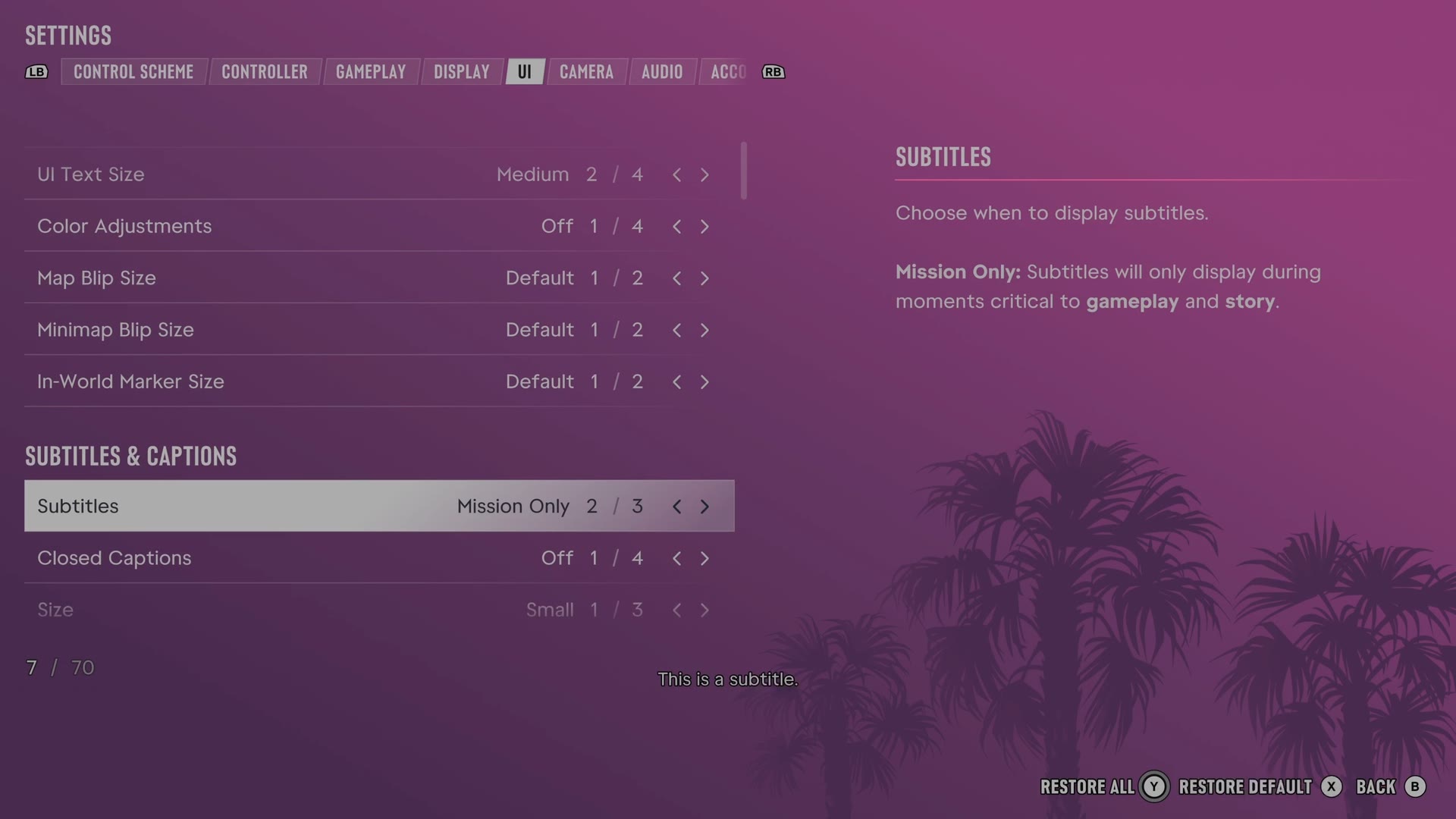
The rows
Subtitles
Chooses when spoken dialogue appears as subtitles.
3 choices Off · Mission Only · On
What the game says about each choice
- Off
- Choose when to display subtitles. Off: Subtitles will never display.
- Mission Only
- Choose when to display subtitles. Mission Only: Subtitles will only display during moments critical to gameplay and story.
- On
- Choose when to display subtitles. On: Subtitles will always display.
Closed Captions
Chooses which sounds appear as written captions.
4 choices Off · Non-Speech · Environment · On
What the game says about each choice
- Off
- Choose when to display closed captions. Off: Closed captions will never display.
- Non-Speech
- Choose when to display closed captions. Non-Speech: Displays text detailing non-speech sounds only.
- Environment
- Choose when to display closed captions. Environment: Displays text detailing environmental sounds only.
- On
- Choose when to display closed captions. On: Displays text detailing non-speech and environmental sounds.
Size
Sets how large subtitles and captions appear.
3 choices Small · Medium · Large
Speaker Names
Chooses whether subtitles and captions identify the speaker.
Switch Off on our console
Background
Chooses the background behind subtitles and captions.
3 choices Off · Transparent · Solid
What the game says about each choice
- Off
- Choose the background for subtitles and closed captions. Off: No background.
- Transparent
- Choose the background for subtitles and closed captions. Transparent: Displays a partially transparent background.
- Solid
- Choose the background for subtitles and closed captions. Solid: Displays an opaque background.
Every row of this tab: GTA 6 UI and HUD settings: every row, from minimap to reticle. The whole screen: GTA 6 settings on Xbox Series S.