How to change the text size in GTA 6
UI Text Size has four choices: Small, Medium, Large and Extra Large. It sets the size of text, icons and button prompts. The game notes that Small affects some of the HUD but not the menus.
First-hand · Xbox Series S · captured 19 November 2026, 02:40 UTC
Steps
- Pause the game and choose Settings, the last entry of the pause menu.
- Press RB or LB until the UI tab is lit. It is tab 5 of 8.
- Move down to the section Scaling & Readability and pick the row you want: UI Text Size, Map Blip Size, Minimap Blip Size and In-World Marker Size.
- Press left or right to change the value. The change takes effect at once.
- Press B to go back. X restores the selected row to its default.
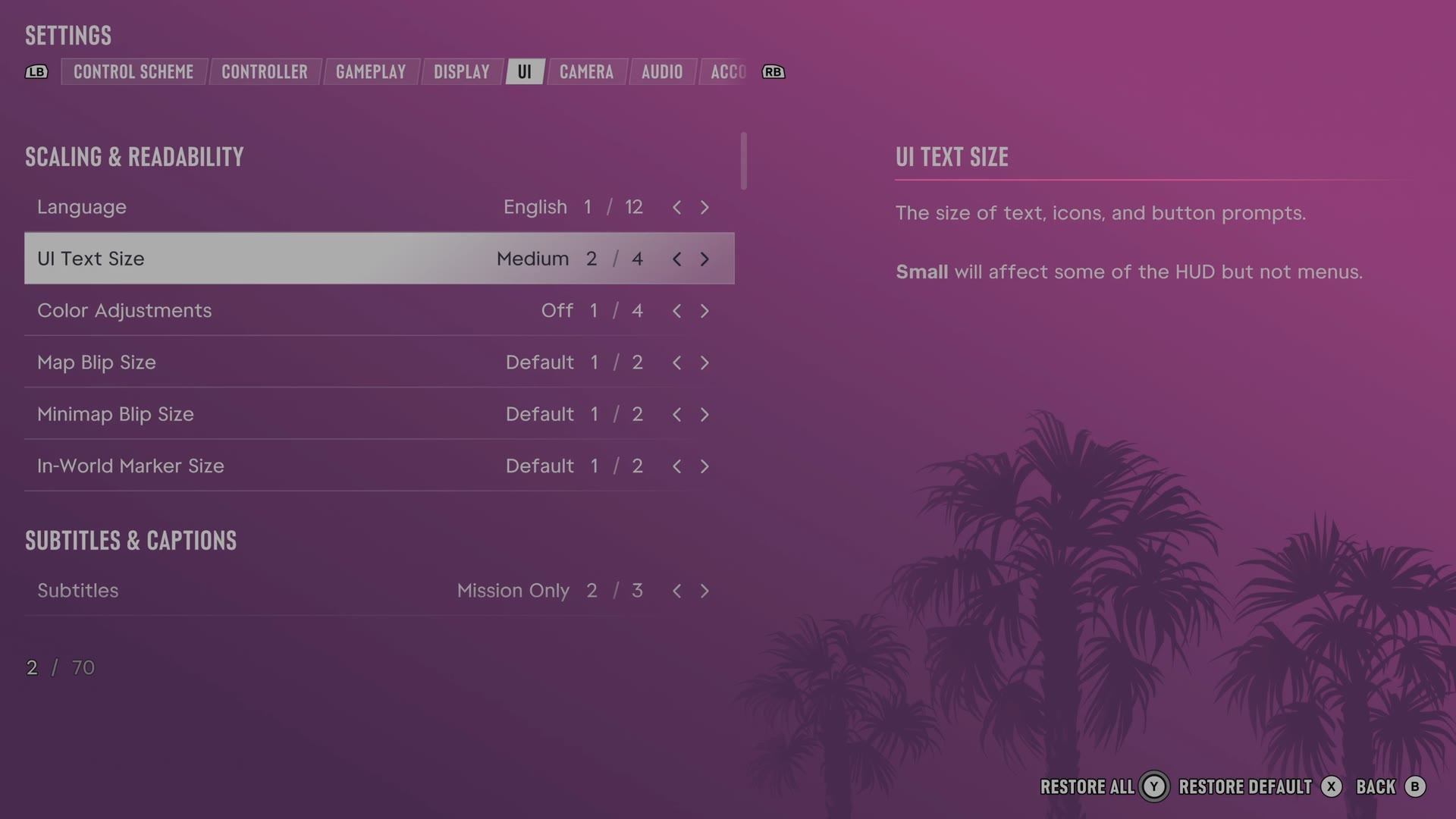
The rows
UI Text Size
Sets the size of interface text, icons and button prompts.
4 choices Small · Medium · Large · Extra Large
Map Blip Size
Sets the size of symbols on the map.
2 choices Default · Large
Minimap Blip Size
Sets the size of symbols on the minimap.
2 choices Default · Large
In-World Marker Size
Sets the size of world markers and compass symbols.
2 choices Default · Large
Every row of this tab: GTA 6 UI and HUD settings: every row, from minimap to reticle. The whole screen: GTA 6 settings on Xbox Series S.